How to Fix Problems With Excel Formula References
Our take

How to Fix Problems With Excel Formula References
Excel formulas are powerful tools that allow you to analyze data, automate large calculations and perform a variety of different tasks.
However, sometimes a small mistake in the formula can lead to errors like formula references that can lead to incorrect results or unexpected behaviour within the sheet
Knowing how to fix these problems like relative or absolute references, broken links or circular references is crucial for ensuring accuracy and precision in your data.
In this guide, we will see how to fix Excel formula reference problems and more. Download our sample workbook here to practice along the guide 
Use Excel features
The easiest way to find and fix Excel errors is to use the Find and Replace feature. It locates all the #REF errors in the worksheet and lets you remove them as you like. Let’s see how to do that below.
We have the following sample data set.
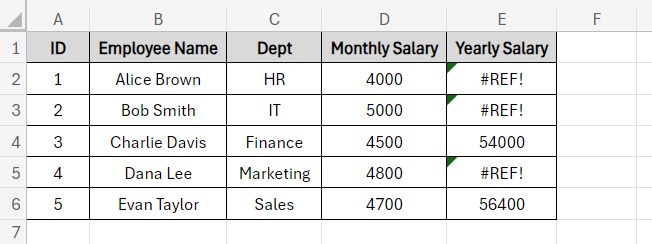
To find and fix the error,
Step 1) Open the workbook.
Step 2) Press CTRL + F to open the Find and Replace dialogue box.
Step 3) In the Find box, type the error you are encountering – for instance #REF.
Step 4) Leave the Replace box empty and click on Replace All.
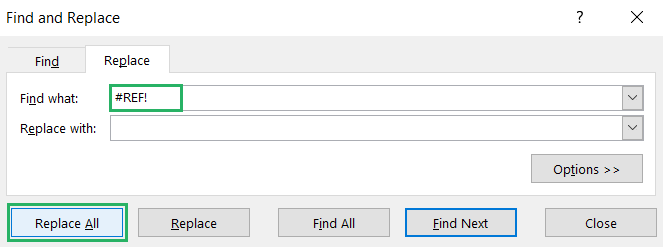
This will replace all errors in the workbook with blank cells. You can make your calculations freely.
How cool is that? 
Check each worksheet
If you have multiple worksheets opened in your workbook, this is the first thing you need to do. Isolate each worksheet so you can figure out where the actual problem lies.
This method is the easiest way to troubleshoot the error when working on a large scale. In case, the error isn’t fixed, you can create a backup of the workbook and retrieve the data later.
To do that,
Step 1) Copy the data in the problematic sheet.
Step 2) Go to the File tab and select Blank Workbook.
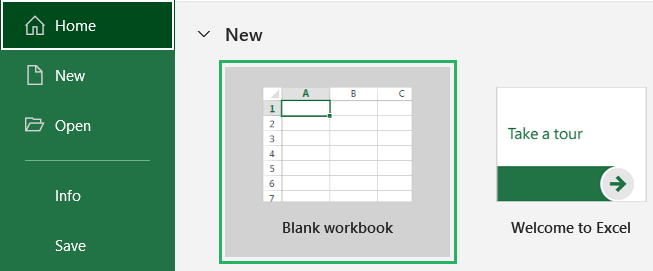
Step 3) Paste the contents of the sheet in the new workbook.
Step 4) Press CTRL + S to save the new workbook.
If Excel shows the formula reference error for this worksheet, we know it’s the one with errors.
If not, repeat the same process for the remaining worksheets until you find the faulty one 
Recheck external links
Once you locate the faulty file, now it’s time to remove the errors. Let’s start the error-finding process by checking the easiest of all off the list 
If your file contains external links, you need to make sure all links are authentic and lead to the correct website and none of them contain any errors.
To do that,
Step 1) Go to the Data tab on the ribbon and select the Edit Links option from the Queries & Connections section.
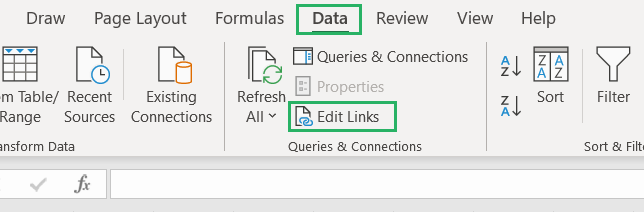
Check for any links that might contain errors. If you spot any, break or remove them.
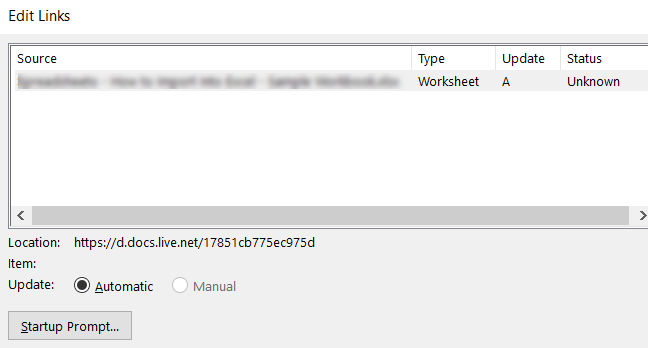
There is a good chance this might not be the error but it will minus one option from the list of problem so we can try the others.
Recheck Excel formulas
The most important fix of all is to recheck each formula and pinpoint where the error lies. This requires troubleshooting the formula in your Excel sheet and making all calculations again.
However, if you have multiple reference errors in a sheet or different sheets in a single workbook, try using the Error Checking tool. It scans all the formulas in the workbook in one go.
To do that,
Step 1) Go to the Formulas tab and select the Error Checking option.
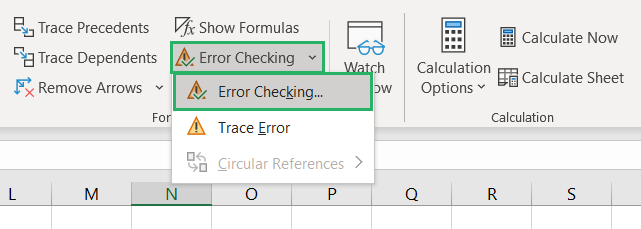
This will run a quick scan through the entire workbook to look for any errors in formulas. If there’s any error, it will display the issue on the screen.
However, if there is no error in the formulas, the following prompt will pop up.
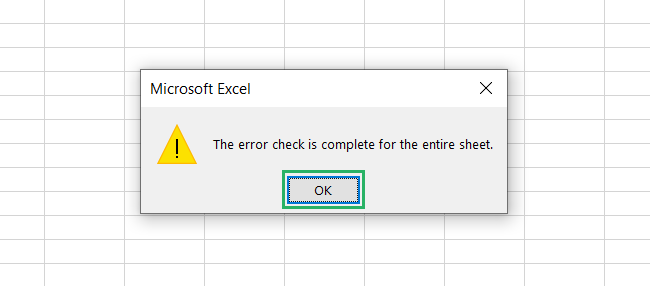
If you think this file might be the source of the problem, try saving it again – the error might appear. If it doesn’t, move on to other files or try the next method 
Check all pivot tables
If your workbook has pivot tables, there is a high chance it might be causing the problem. The smallest mistake can lead to a reference error in the sheet 
To solve the problem,
Step 1) Click on your pivot table to activate it.
Step 2) From the ribbon, go to the PivotTable Analyze tab.
Step 3) Select the Change Data Source option from the Data section.
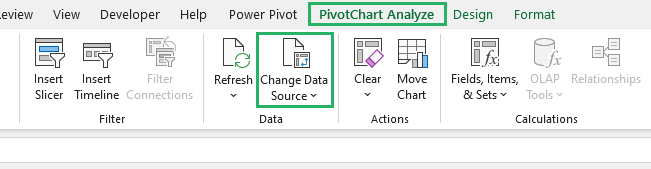
Step 4) The Change Data Source dialog box will take you to the source data.
Check every formula in the data set for any errors and make changes if required.
This should fix the problem – but if it doesn’t, we have other solutions prepared 
Review charts
If the formula reference error persists, you need to check your charts. This is often the most time-consuming and tiring method – especially if you have multiple charts in a single tab.
A common error in this case is when the linked data series is moved or deleted. Going over the source data and series can fix the problem in no time 
Sometimes it is not possible to check the entire chart from A-Z, in such cases, we look at specific points of the chart for errors. Let’s see the locations this includes.
- Look for errors in the source data of the chart.
- Check the chart’s Secondary axis for any sort of loopholes.
- Check the Chart Title, Data Labels, and Axis Labels for any errors in the graph.
- Right-click the chart and choose Select Data Source. Look for errors in the Horizontal Axis Formula and in the Legend entries (Series).
This should fix the faults of the charts – save the chart to see if it works. If it doesn’t, copy the data and paste it into a new worksheet as a last resort and save it.
If the new file saves without any error message, the error has been resolved and you can delete the previous chart 
Check name managers
If the error is still not resolved, try checking the name manager. It refers to named ranges in your worksheet that might contain formulas with errors or incorrect references.
To do that,
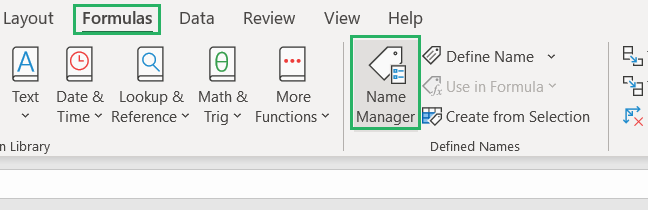
Step 1) Go to the Formulas tab and select the Name Manager option from the Name Manager section.
Step 2) Scroll through the dialogue box and check if any formula in the Named Range has an error.
Step 3) If the error exists, delete the named range. Repeat the same for the remaining ranges.
Step 4) Once done with all the ranges, save the file.
If Excel doesn’t display any prompt upon file saving, all the errors have been resolved.
The process can be a bit tiring but it’s sure to give results
Conclusion
In this tutorial, we saw some common Microsoft Excel formula errors and how to fix them. By understanding these common issues, you can prevent errors in your data
We saw how you can find formula reference errors in your worksheet and fix them. This included using the Find and Replace feature, rechecking Excel formulas, and checking worksheets.
We also saw how to fix errors by reviewing charts, checking name managers, and pivot tables. Mastering these strategies can help troubleshoot and fix formula problems confidently.
To learn more about Excel formulas and errors, give the following articles a read:
“Reference isn’t Valid” Excel Error: How to Fix (2024)
How to Find Circular References in Excel (+ How to Fix Them)
How to Fix the #Ref Error in Excel (Step-by-Step)
We hope you enjoyed reading this article as much as we did crafting it! 

Written by Kasper Langmann
Hi, I'm Kasper Langmann
I'm the co-founder of Spreadsheeto, a certified Microsoft Office Specialist, and a Microsoft MVP.
With over 10 years of experience, I’ve taught Excel to millions of people worldwide.
I spent over 14 hours researching and writing this tutorial.
Last updated on August 29th, 2024.
Before you go, sign up for my free Excel course (+100,000 students) ->


The post How to Fix Problems With Excel Formula References appeared first on Spreadsheeto.
Read on the original site
Open the publisher's page for the full experience
Related Articles
- Why Do My Excel Formulas Break?Hi all, I’ve noticed that my formulas often break when I copy them or change data. I think I’m messing up references, but I’m not sure how to fix it properly. Are there any simple techniques to avoid this? Would really appreciate beginner-friendly advice. submitted by /u/ModernWebMentor [link] [comments]
- How do you figure out the logic of a huge Excel workbook with dozens of linked sheets and circular references?I sometimes receive Excel workbooks that have 20–30 worksheets with a lot of formulas referencing each other across sheets, and it can take a long time to understand how everything is connected. Excel has things like Trace Precedents / Trace Dependents, but that works mostly at the cell level and becomes difficult to follow when the workbook is large. I’m wondering if there are any tools that can: - Automatically extract formulas from a workbook - Detect cross-sheet references -Generate some kind of visual dependency map between sheets - Help explain what each sheet is doing Basically something that can help reverse-engineer a complex Excel model more quickly. Are there any add-ins, tools, or workflows people here use for this? It's very frustrating and becomes a nightmare when engineering companies keep adding on to bloated Excel files without documentation on how the model works. Tracing the formulas manually is such a pain submitted by /u/sporty_outlook [link] [comments]
- Excel seems to think cell isn't big enough so 2 digit number looks crazy, no adjustment fixes issueI have multiple sheets that add together to make a total on the first page. Easy. The numbers are small - 3, 5, 10, nothing big. On the totals sheet, all the two digit sums are wrapped so that they are very small. I do not have wrapped text on but when I DO wrap the text, it stops wrapping them BUT there's this giant space between the two digits like "1 0" for 10. I tried everything I could think of - rewriting the formula as a SUM function (rather than this sheet + this sheet + this sheet), making sure each cell is formatted as a number, running "text to column" on each column of data, switching the font, switching the font size, changing the column size manually, double clicking on the columns to have them auto size, turning off shrink to fit, turning on shrink to fit again after, playing with the alignment.... Does anyone know what is going on and how I can solve it? Adding images (w/ some edits for privacy for my company). Will include the formulas (both versions). https://preview.redd.it/6n05pqeer4og1.png?width=1654&format=png&auto=webp&s=64729e1558bfba595d7d043b18d777b3e33e4ecf https://preview.redd.it/ydydstbfr4og1.png?width=1664&format=png&auto=webp&s=27e3d7cd18c2c380a5cf1a48853060a4bcd17c7c https://preview.redd.it/7dcraf9gr4og1.png?width=1106&format=png&auto=webp&s=4c93c635fbc20762a18cc8e137b6a40ee37c470e submitted by /u/catincombatboots [link] [comments]
- Excel formula automatically rewriting itself??Hi all, this is a really odd problem to run into and I am unsure how to proceed from here. I am currently entering data and I have Excel performing an =SUM(B5:AC5) for my data that is being entered. Because the data entry can go pretty fast sometimes, I would keep entering data past AC5 before I realize what happened. When I look at my SUM column, Excel has flagged my =SUM(B5:AC5) formula with the error below, which is fine and whatever, but it is automatically changing my =SUM(B5:AC5) formula to =SUM(B5:AF5) or something of similar depending on what column I stopped at. Just for reference, data from AD5 to AO5 is being summed up in another column with SUM=(AD5:AO5). Formula error being flagged by Excel I have no idea why it is doing this and I tried to ignore error, but it still automatically rewriting my formula anyways! This worksheet and formula worked smoothly 4 months ago so I don't know what is going on. submitted by /u/WildKhanine [link] [comments]