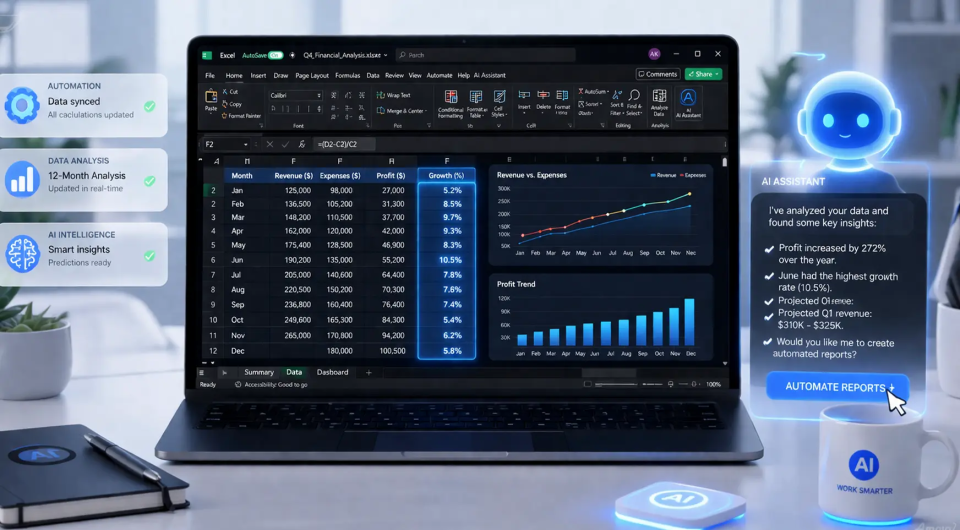
The Excel 101 series has always been about closing the gap between knowing a function and actually applying it, and the introduction of Agent Mode is the most direct step we have seen in that direction. This is not a minor update or a new formula to memorize; it is a fundamental shift in how we approach the spreadsheet itself. For readers who have spent years wrestling with nested IF statements, complex VLOOKUPs, and the dreaded circular reference, Agent Mode represents a way out of that manual grind. It moves the conversation from "how do I make this formula work" to "what do I want the data to tell me," and that is a far more empowering question to ask.
The practical implication here is significant for anyone who has ever felt that Excel punishes you for not thinking like a programmer. Up to this point, mastering Excel required a specific kind of logic, one that forces you to break a problem down into discrete, rigid steps. Agent Mode changes the contract. Instead of you having to translate your intent into a language the software understands, the software is now meeting you halfway, interpreting your request and handling the heavy lifting of constructing the right approach. For the analyst who spends 80% of their time cleaning and preparing data rather than analyzing it, this is not a convenience; it is a reallocation of effort. You get to spend more time on the judgment calls, the interpretation, and the strategy that actually drive decisions.
We see this as a natural progression rather than a leap into the unknown. The series has already walked you through the foundational functions, and Agent Mode does not render that knowledge obsolete. Instead, it builds on it. Your understanding of what a clean dataset looks like, or why a pivot table is the right tool for a given question, becomes even more valuable when you can instruct an agent to execute those steps for you. The tool becomes an accelerator for your existing expertise, not a replacement for it. This is what makes the feature feel less like a gimmick and more like a genuine productivity multiplier: it respects what you already know while removing the drudgery that often comes with applying it.
For our readers, the takeaway is straightforward: start experimenting with this now. Open a spreadsheet you use for a recurring report and ask the agent to perform the first step of your usual process. See where it gets you, and where it needs your guidance. The goal is not to abandon your skills but to let the agent handle the parts of the job that are mechanical, so you can focus on the parts that are genuinely insightful. That is a workflow worth building toward, and it starts with a single request typed into the box.