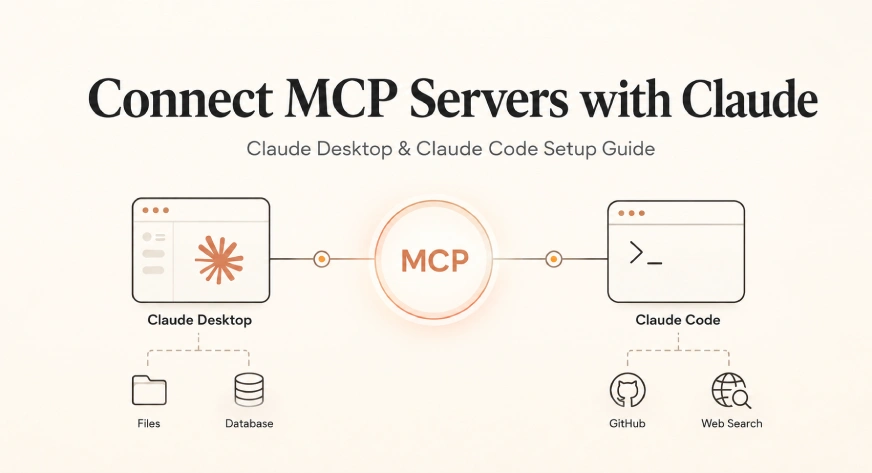
Most people do not think about what happens after the chat window closes. You ask a question, get an answer, and that is where the relationship ends. But the real promise of tools like Claude was never about better conversation. It was always about better action. That is why the recent guide on connecting MCP servers with Claude Desktop and Claude Code matters. It is not a flashy feature announcement. It is a quiet unlock. Once you connect an MCP server, Claude can reach into your files, query your databases, touch your repositories, and work with the systems you already use every day. That changes the spreadsheet from a static grid into a command center. And for anyone who has spent hours copying data between tabs, that shift is worth paying attention to.
The practical takeaway here is simpler than the jargon suggests. Whether you use Claude Desktop for everyday tasks or Claude Code for deeper development work, the setup only takes a few steps. That is the part that should grab you. We have all been conditioned to expect that connecting external tools means wrestling with APIs, permissions, and documentation that reads like a legal contract. But this guide walks through the process in a way that feels approachable, even for someone whose primary tool is still a spreadsheet. The difference between Desktop and Code is real, but not intimidating. One is about extending your daily workflow. The other is about giving your coding environment a direct line to external systems. Both are useful. Neither requires a computer science degree.
If you are the kind of person who has felt constrained by traditional spreadsheets, this is the moment to explore what happens when your data tools start talking to each other. You do not need to abandon your current setup. You need to give it a new set of hands. Connecting an MCP server is how you do that. It turns Claude from a chat assistant into an active participant in your work. Instead of asking questions about your data, you can ask it to do something with your data. That is a subtle but profound difference. It is the difference between reading a map and driving the car. And for teams that live in spreadsheets, databases, and code repositories, this is not a nice-to-have. It is the next logical step in how work actually gets done.
What we would tell a reader who asks us about this is straightforward: start with one connection. Pick a tool you use daily, connect it to Claude, and see what breaks. Because something will break, and that is fine. The first integration is always the bumpy one. But once you feel the friction of a manual workflow replaced by a direct connection, you will not want to go back. The open question is not whether MCP servers are useful. They clearly are. The question is which workflows you will choose to automate first. That is the detail worth watching. Because the guide gives you the technical steps, but the real decision is yours. And that is exactly where the future of data management starts.